
Hi,
I hope you guys are doing good.
My last two months were very busy, that why i was not able to post any article. I apologize for that.
Last week Microsoft has release few mandatory ms office update. That update was crucial for outlook users, before apply ms office updates, we need to know, which outlook version and build my users are using.
To achieve it, i have written a tiny “Powershell” script. when you run the script, that will give you the file version and product version information of WORD, EXCEL, POWERPOINT and outlook.
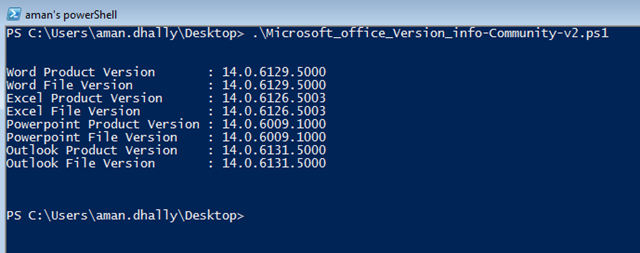
Download Link : http://gallery.technet.microsoft.com/scriptcenter/Get-Offie-Applications-5c0bb2e1
I tested this script on “office 2010 32 bit” on windows 7 32 bit.
I hope you may like the script and found it helpful.
Thanks
Aman Dhally


$wordPath = ‘C:\Program Files\Microsoft Office 15\root\office15\WINWORD.EXE’
$wordPath = ‘C:\Program Files (x86)\Microsoft Office\Office14\WINWORD.EXE’
function Get-OfficeVersion{
<#
.SYNOPSIS
Get's the Version info of Word, Excel, Outlook, and PowerPoint.
.DESCRIPTION
Out-of-the box, a Windows system automatically shares the root of every hard drive on the machine as $ (so you get C$, D$, A$, etc). These shares need to be enabled. The shares are ACL’ed so that only members of the local administrative group can access them.
.EXAMPLE
.NOTES
.LINK
https://amandhally.com/2013/07/03/powershell-script-get-the-file-and-product-version-of-ms-office-applications/
http://blogs.msdn.com/b/larryosterman/archive/2005/05/26/422188.aspx
#>
[cmdletbinding()]
param(
#The computers to get
[Parameter(ValueFromPipeline=$true)]
[string[]]$ComputerName=$env:COMPUTERNAME
)
begin{}
process{
foreach($Computer in $ComputerName){
$wordPath = “\\$Computer\C`$\Program Files*\Microsoft Office\Office*\WINWORD.EXE”
$excelPath = “\\$Computer\C`$\Program Files*\Microsoft Office\Office*\EXCEL.EXE”
$powepointPath = “\\$Computer\C`$\Program Files*\Microsoft Office\Office*\POWERPNT.EXE”
$outlookPath = “\\$Computer\C`$\Program Files*\Microsoft Office\Office*\OUTLOOK.EXE”
try{
$wordProperty = Get-ItemProperty -Path $wordPath -ErrorAction Stop
$excelProperty = Get-ItemProperty -Path $excelPath -ErrorAction Stop
$outLookProperty = Get-ItemProperty -Path $outlookPath -ErrorAction Stop
$powerPointProperty = Get-ItemProperty -Path $powepointPath -ErrorAction Stop
Write-Output ([PSCustomObject]@{ComputerName=$Computer;Office=@(
[PSCustomObject]@{Product=’Word’;ProductVersion=$wordProperty.VersionInfo.ProductVersion;FileVersion=$wordProperty.VersionInfo.FileVersion},
[PSCustomObject]@{Product=’Excel’;ProductVersion=$excelProperty.VersionInfo.ProductVersion;FileVersion=$excelProperty.VersionInfo.FileVersion},
[PSCustomObject]@{Product=’Outlook’;ProductVersion=$outLookProperty.VersionInfo.ProductVersion;FileVersion=$outLookProperty.VersionInfo.FileVersion},
[PSCustomObject]@{Product=’PowerPoint’;ProductVersion=$powerPointProperty.VersionInfo.ProductVersion;FileVersion=$powerPointProperty.VersionInfo.FileVersion}
)})
}
catch{
Write-Error $Error[0]
}
}
}
end{}
}
very good