
Part-1: Text Manipulation in PowerShell using Trim, TrimStart , TrimEnd methods
Part-2: Text Manipulation in PowerShell using .ToLower and .ToUpper method
Part-3: Text Manipulation in PowerShell using .StartsWith() and EndsWith() methods
Hi,
Today we are using .replace and .remove methods to play with the string. Lets start. Today i am using some fake email id as text.
$text = Aman.Dhally@xyz.com

Replace
Using replace we can replace the text,symbols of our strings. The syntax is simple Replace(“Old Character”,”new character”)
First lets replace “Aman” with some other name , for example with “SAM”,”
You can see in below screenshot that text “aman.dhally@xyz.com” is replaced with “Sam.Dhally@xyz.com”
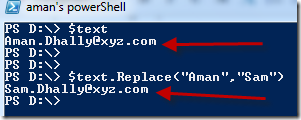
Secondly lets replace “.” with a blank spaces

In this example. first you can see our original text “Aman.Dhally@xyz.com”, in second we are keeping the first 4 characters of the text and removing everything else, so the output is “Aman”, in third we are keeping first 4 characters of the text “which is “AMAN”, and then removing next 7 characters of the text which is “.Dhally” and then the output is “Aman@xyz.com”
Part-2: Text Manipulation in PowerShell using .ToLower and .ToUpper method
Part-3: Text Manipulation in PowerShell using .StartsWith() and EndsWith() methods
Hi,
Today we are using .replace and .remove methods to play with the string. Lets start. Today i am using some fake email id as text.
$text = Aman.Dhally@xyz.com

$text.Replace(“Aman”,”Sam”)

$text.Replace(“.”,” “)
In the screenshot you can se that all “.” are replaced with the “ “ a black space.

lets assume that we have a text file which contain list of all users email id in our “XYZ” company and we want to remove “@xyz.com” and keep the text before “@xyz.com” .
$text.Replace(“@xyz.com”,” “)
and here is the our output 🙂 ,showing only the text before “@xyz.com”

Remove
Before doing anything else first lets check the length of our text using Length property. The syntax for remove method is to define to keep the number of characters and remove everything else. Not getting my point.. let ,me show to you.
Our text have 19 characters in it.
$text.Length

$text.Remove(4)
You can see that i mentioned 4 characters to keep and remove everything else. and the output is “Aman” which are exactly 4 characters.

$text.Remove(11)
Now i am keeping 11 characters of the string and removing everything else. and you can see that the output is “Aman.Dhally” which are exactly 11 characters .
there is another example of Remove() method.
$text.Remove(4,7)

Video:
Thanks for reading
Aman Dhally
Hello how can i remove the last 2 digits of my string:
[string]$text = “Archive_Testebene1_20120228_124556”
$text.Length
$text.Remove(4)
With remove it only remove the first 4
Hi Jan
To remove the last 2 digits try
$text.Remove(32)