
Few days back I was trying to monitor a ISCSI service on my one of Windows Server. But I was not get succeed to do it. Then I post it on SCOM mailing list. With the Help of Kevin Holman and his blog post i am able to get this done.
To Monitor a specific server we need to create a New Class for it and then we need to write a Discovery rule for it. So that Discovery find that Target and then we can write desired monitoring or Alert rule on it.
For example I am going to Monitor Solarwinds TFTP Server installed on one of my server and going to monitor its service.
Tools Needed.
We need System Center Operations Manager 2007 R2 Authoring Resource Kit. You can download it from here
Step: 1
After Installation Open SCOM Authoring Console and create and New Management Pack.
Type the Name of Management Pack. for example “solarwinds.Tftp.server

Now type Display Name for Management Pack and Type its description. for example display Name “Solarwinds TFTP Server” and then types its description.

Click on “Service Model” and select “Classes” and in detail pane , right click and select NEW and select Custom Class
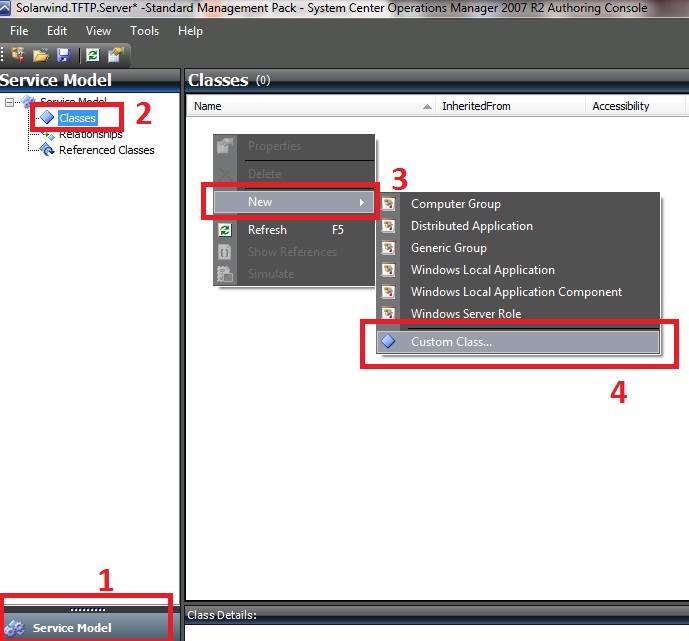
Now give an Name to New Class. for example I am giving “TFTP Server”

In “General” tab click on “Base Class” and choose “Microsoft.windows.LocalApplication” and click on OK
In Display String type name and description. Now Click on Apply and OK

Now click on “Health Model” and click on “Discoveries” , right click on detail pane and right click and select “New” then “Custom Discovery”

Now choose an “Unique Identifier” for this discovery, I am giving its name “TFTP Discovery”

Select “General” tab and type Display Name , Description for Discovery and My service is running on Windows 2003 server so in Target choose “Microsoft.windows.Server.Computer”

click on “Discovery Classes” tab, in “Discovered classes and their attributes” click on “Add” and select “Add Discovered type”

Now choose “Solarwind TFTP server which we made previously” and click on OK


click on “configuration” tab and click on “Browse for a type”

I want to discover my Server using Registry value of its Computer Name, so we will choose Registry to discover our server
Now Look for “registry” and choose Microsoft.windows.FilteredregistryDiscovery.Provider” and in Module ID type DS and click on OK
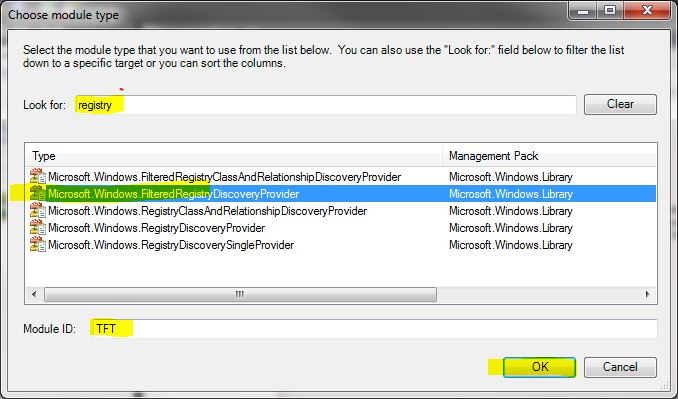
In “Schedule” tab choose the schedule to run, for demo purpose I am using 60 Seconds

I want to discover my computer using computerName registry key and its Value.
the location of this key is “HKEY_LOCAL_MACHINE\SYSTEM\CurrentControlSet\Control\ComputerName\ComputerName”

Now click on “registry Probe Configuration” and click on “Value” because we need to find computer by its Name.
In Propertied type “TftpExists” and in path type “SYSTEM\CurrentControlSet\Control\ComputerName\ComputerName\ComputerName”
and in “Attribute Type” choose “String”

Now click on “Expression” tab and click on “Insert”

In “Parameter Name” choose “TFTexists”

In Operator choose “Equals”

and in “Value” type your computer Name (shown as exact in the “computerName” registry key)

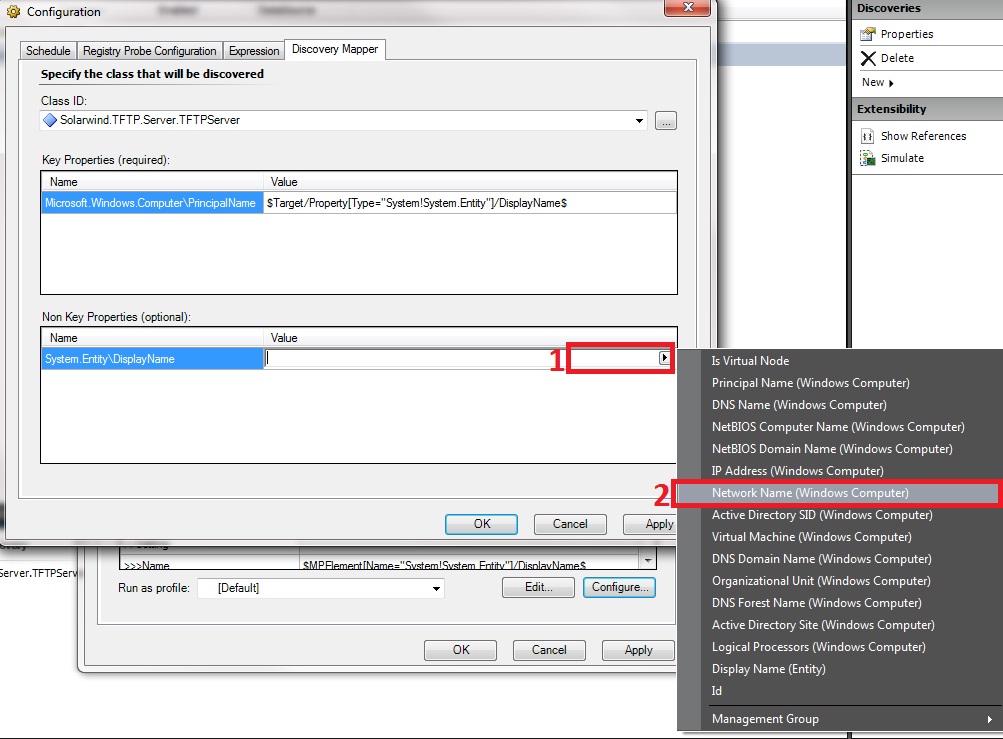
click on “Discover Mapper” and in “Key property” choose “Display Name”









Awesome post, exactly what I was looking for!
Thanks Mr.P