
Hi,
Two days back i finally upgraded my laptop to “Windowd8 Pro”. After clean installation of the Windows8 Operating system my first expression was “WOW!”. I like it. Windows8 Operating System really looks very cool.
After installation the first program i run was “Powershell”. Microsoft had added a lots of new cmdlets on the new version on PowerShell v3. Microsoft is shipping Windowd8 with New Windows PowerShell Integrated Scripting Environment (ISE) and this new “Powershell ISE” contain a lots of new features.
Where is my Windows PowerShell Integrated Scripting Environment (ISE) is on Windows 8???????
After the installation of windows8 pro, i was not able to find “Powershell ISE” anywhere,
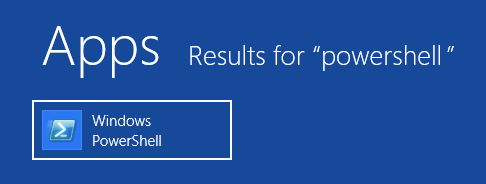
i searched and found it under,
- Press the “windows Key” or click on “Start”
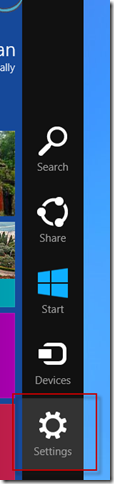
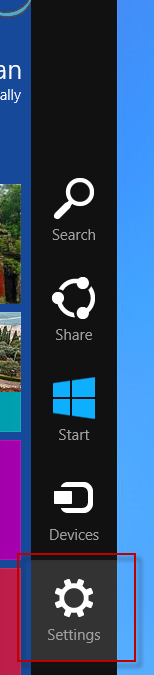
- Now Move you Mouse on the Top “right “ of the corner of the screen , you that the “Right hand side” option bar comes and click on Settings.
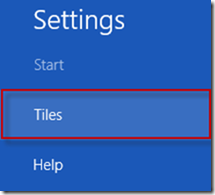
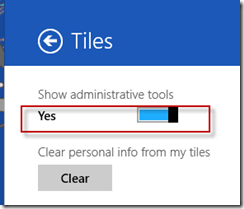
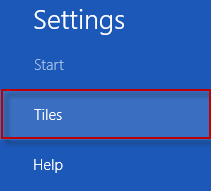
- Now click on”tile”
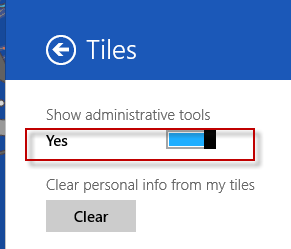
- Change the “Show administrative tool” button from “No” to “yes”
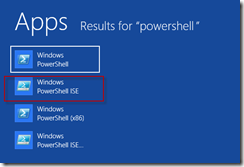
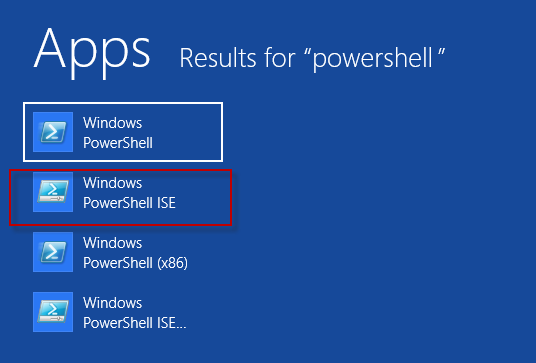
- and here it is our “Powershell ISE”
Lets Pin Windows PowerShell Integrated Scripting Environment (ISE) to our taskbar so that we can access it easily.
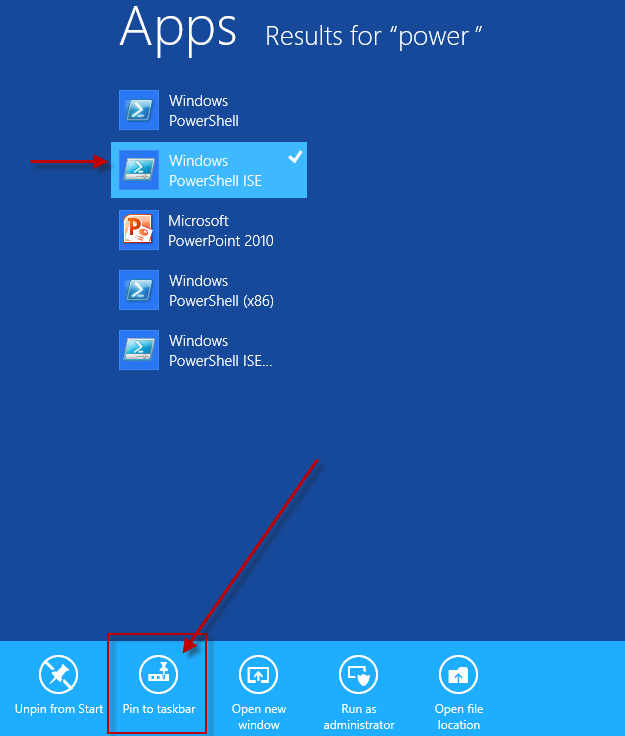
- Right Click on “windows Powershell ISE.
- In the bottom you can see the “Pin to taskbar” Icon, Click on it,
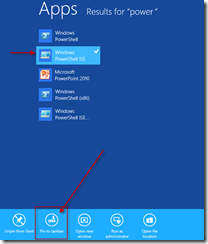
- Now we have “Powershell ISE” on our taskbar.

Thanks
Aman Dhally


